Sep 24, 2026 · by Baptiste, founder of Vanpelt Studio
How to get views on YouTube Shorts: use YouTube's new feedback tool before you publish
Part of YouTube updates for creators: official YouTube changes, explained in plain English.
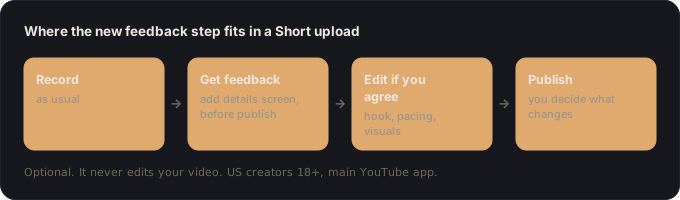
Until now, the only way to find out if a Short worked was to publish it and watch the numbers. In September 2026, YouTube added a step before that: a Get feedback button in the upload flow that reviews your Short’s hook, pacing and visuals before anyone sees it.
Rene Ritchie, YouTube’s creator liaison, explained it on YouTube’s official Creator Insider channel, and demonstrated it on the very Short he was presenting. This article sums up what the tool does, who can use it, and a five-step routine to turn its notes into more views on your Shorts.
When you need it: your Shorts aren’t getting views and you can’t tell why. Or you publish a Short, watch it flop, and only then see what was wrong with the first two seconds.
YouTube’s announcement of the Shorts feedback tool, from the Creator Insider channel (about 2 minutes).
What the Shorts feedback tool does
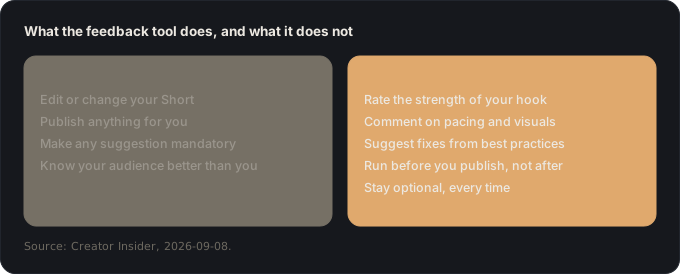
- It reviews your Short before you publish. As part of the normal upload, you can ask for tailored notes on the strength of your hook, your pacing and your visuals.
- It shows you, it doesn’t do it for you. The tool doesn’t edit your Short or change anything. It gives suggestions based on best practices. You can use all of them, some of them, or none.
- It’s optional, every time. YouTube stressed that every creator, channel and audience is different, and that creators stay in charge. You don’t have to press the button at all.
- Who has it: it’s rolling out to all creators in the US, aged 18 or over, using the main YouTube app on Android or iPhone.
- Where to find it: start a normal Short upload and look for the Get feedback button on the add details screen, before you publish.
In the video, Ritchie ran the tool on the Short he was presenting. It praised his delivery and audio, then suggested cutting in quick visuals, such as screen recordings of the feature, so viewers could see what he was describing instead of only hearing it. That’s a good picture of the kind of note to expect: specific, practical, and about keeping eyes on the screen.
How to get views on YouTube Shorts with the feedback tool: five steps
One example runs through every step. Ana runs a home-workout channel and posts three 40-second Shorts a week, each with one exercise tip. Some reach thousands of people, most stall at a few hundred, and she can’t see the pattern.
1. Check that you have the tool (1 minute)
Do this: open the main YouTube app on your phone (not YouTube Studio, not a computer), start uploading a Short and go to the add details screen. Look for Get feedback.
You end up with: either the button, or the knowledge that it hasn’t reached you yet.
Why: it’s only rolling out to creators in the US who are 18 or older, in the main app on Android and iPhone. If you’re outside that group, skip to step 2: the checklist still works without the tool.
Ana: she’s in the US, on an iPhone. The button is there.
2. Write the hook before you film (5 minutes)
Do this: write down the first sentence of the Short and what’s on screen in the first second, before you press record. Make the viewer’s reason to stay obvious immediately.
You end up with: a hook you can compare against the tool’s feedback, instead of one you made up while filming.
Why: the hook is the first thing the tool rates, and the first thing a viewer in the Shorts feed decides on. Since August 2026, a Short counts as a view from its first frame, so the number that tells you people stayed is engaged views (what that means). A strong hook moves that number, not the public count. For proven openings, see our hook examples.
Ana: her old openings started with “Hey guys, today’s tip is…”. Her new one opens on the exercise already in motion, with the words “You’re doing squats wrong” on screen.
3. Ask for feedback, and sort it (3 minutes)
Do this: after uploading, tap Get feedback. Put each note into one of three piles: hook, pacing or visuals. Then mark each one “agree” or “disagree”.
You end up with: a short list of changes you actually believe in.
Why: YouTube’s own framing is that you’re in the driver’s seat. The tool knows best practices, you know your audience. Sorting the notes stops you from applying everything by reflex, or ignoring everything out of pride.
Ana: hook: “strong”. Pacing: “the middle explanation runs long”. Visuals: “show the wrong form next to the right form”. She agrees with both of the last two.
4. Fix the most important note first (10 minutes)
Do this: go back to your editor and change only the one note you agree with most. Re-export and run the feedback again if you want to check the fix landed.
You end up with: one clearly better Short, instead of a Short you rebuilt from scratch at midnight.
Why: one real fix beats five rushed ones, and it lets you learn which kind of note makes the biggest difference for your channel.
Ana: she adds a two-second split screen of the wrong and the right squat. It also fixes the pacing note: she no longer needs to explain the difference, because viewers can see it.
5. Keep a feedback log (2 minutes per Short)
Do this: in a note or spreadsheet, write down for each Short: the main piece of feedback, whether you acted on it, and its engaged views after a week.
You end up with: your own evidence of which suggestions help your Shorts, after a dozen uploads.
Why: YouTube says the suggestions are best practices, not rules, and every audience is different. A log turns general advice into something specific to you, and it’s the honest answer to “why aren’t my Shorts getting views?”: you’ll see the pattern instead of guessing.
Ana: after four weeks, her Shorts with a visual fix average almost twice the engaged views of the ones without. “Show, don’t explain” becomes her channel rule.
If it went wrong, it’s one of these
- “I can’t find the Get feedback button.” Check the three conditions: US, 18 or over, the main YouTube app on your phone. It won’t appear in YouTube Studio or on a computer, and the rollout is gradual.
- “I disagree with the feedback.” Then don’t use it. The tool is based on general best practices, and YouTube says plainly that it’s up to you. Note the disagreement in your log and see what the results say.
- “I applied every suggestion and it still didn’t work.” Feedback improves how a Short is made, not what it’s about. If the topic isn’t something your viewers want, no edit fixes that. Our guide to finding YouTube video ideas people already want works for Shorts too.
- “My views went up but engaged views didn’t.” Since August 24, 2026, a Short counts as a view the moment it starts playing. Engaged views tell you whether people stayed.
Where Vanpelt Studio fits (if you want help)
The Vanpelt Studio desktop app is built for long-form, but it has a Shorts side: its short finder goes through the footage you shot for your long videos and proposes Shorts from the parts you didn’t use, so a Short is new material rather than a clip your audience already saw. Run those through YouTube’s feedback tool before you publish, and you have both halves: fresh material, checked before it goes out.
Sources
- Creator Insider (YouTube), New! Get Feedback on Shorts Before Publishing, published September 8, 2026.
- Creator Insider (YouTube), New! Updates to Public View Counts and Engaged Views Explained, published August 21, 2026.