Nov 9, 2026 · by Baptiste, founder of Vanpelt Studio
Podcast clips in YouTube Studio, keyframes in Create, clearer Shopping numbers and live hearts
Part of YouTube updates for creators: official YouTube changes, explained in plain English.
YouTube’s monthly creator roundup for November 2026 brought four changes. The big one for anyone with a video podcast: you can now turn an episode into standalone clips and Shorts directly in YouTube Studio on desktop, without exporting anything or opening an editor. The other three are smaller but useful: clearer YouTube Shopping affiliate analytics, keyframe animation in the YouTube Create phone app, and animated hearts in vertical live streams.
This article does two things. First, it lists what changed, in plain English, with where to find each feature and who gets it. Then it turns that into six moves, each with what to do, how long it takes and what you end up with, followed through on one example channel.
When you need this: you publish a video podcast and your Shorts shelf is empty because cutting clips is a chore. Or you tag products in your videos and can’t tell whether a product failed because nobody looked or because nobody bought. Or you edit Shorts on your phone and want movement without a desktop editor. Or you go live vertically and want more of your viewers to leave a like.
What changed in YouTube’s November 2026 roundup
1. Podcast episodes become clips and Shorts inside Studio
In YouTube Studio on desktop, go to Content, then Videos, click the episode, and select Clips and Shorts in the left menu. Choose whether you are making a Short or a video clip, then pick the segment.
There are two ways to pick it:
- Highlight the transcript. Select the text you want and that becomes the segment. This works everywhere the tool is available.
- Use the AI outline and AI suggestions. Studio breaks the episode into an outline and proposes highlights. YouTube’s Help Center lists these for creators in Brazil, Canada, France, Germany, India, Mexico, South Korea, Spain, the United Kingdom and the United States, in English, French, German, Hindi, Korean, Portuguese and Spanish.
What happens to a Short made this way:
- The 16:9 frame is cropped to 9:16 automatically. The preview can show black bars on some shots; YouTube says the final version shows those parts as a blurred crop of the video.
- Captions are generated automatically where available, and you can change the color, font, style and position, or turn them off.
- The full episode is linked as the Short’s related video, so a viewer can tap through to the whole thing. This applies to public Shorts only, not private, unlisted or Made for Kids ones. For a horizontal video clip, YouTube suggests adding a link to the episode in the description instead.
2. Shopping affiliate analytics separate attention from money
If you are in the YouTube Shopping affiliate program, the Shopping analytics in Studio now show real-time engagement (impressions and tag clicks) separately from your actual sales and revenue. YouTube’s framing: engagement gives you an instant read on which products catch your audience’s attention, while the sales numbers tell you what earned. You also see which merchants are behind your purchases. Find it under Studio → Earn → Shopping.
3. Keyframes in the YouTube Create app
YouTube Create, the free phone editor, now has keyframes. You can animate the position, scale, rotation and opacity of text, stickers, GIFs, still images and video layers. Select an element, tap the keyframe diamond to set the start, move the playhead forward and change the element (pinch to zoom, rotate it). An end keyframe drops automatically and the app animates between the two. To change the feel, put the playhead between the two keyframes, tap Curves and choose an easing preset such as quad or cubic.
YouTube Create is available in 21 countries, on Android phones with at least 4 GB of RAM and on iPhone XR or newer running iOS 17 or later.
4. Hearts in vertical live streams
When people watch your vertical live stream in the Shorts feed on mobile, they can tap the heart icon or double-tap the screen to send animated hearts. They can send as many as they like during the stream, and each viewer’s first heart is automatically counted as a like on the stream.
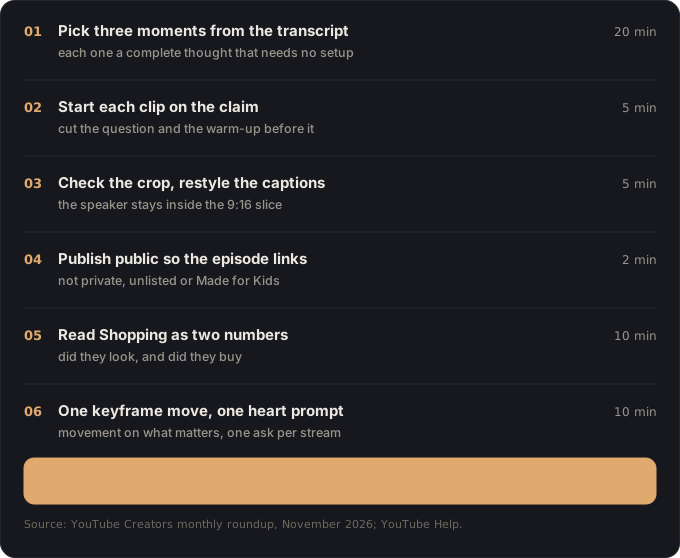
Six moves for this month’s YouTube updates
One example runs through every step. Tomás runs a cycling channel with about 4,200 subscribers. Every week he publishes a one-hour video podcast with his co-host Lena, filmed on two cameras side by side. He tags bike gear through YouTube Shopping, edits the occasional Short on his phone, and sometimes goes live vertically after a race. His Shorts shelf has been empty for two months because exporting and reframing clips took a whole evening. We’ll follow him through each move.
1. Pick three moments by reading the transcript (20 minutes)
Do this: open the episode in Clips and Shorts and read the transcript, or skim the AI outline if you have it. Mark every place where one person makes a claim, gives a reason and lands it inside about a minute. Pick three. If you have AI suggestions, read them as a shortlist, not a decision: ask of each one, “would this make sense to someone who never heard the episode?”
You end up with: three marked segments, each a complete thought that needs no setup from earlier in the episode.
Why: a podcast moment works as a Short when it stands on its own. The tool can find where the energy is; it can’t know which ideas your audience comes to you for. Our lesson on finding ideas your audience already wants helps you choose between candidates.
Tomás: he picks Lena’s 50-second argument that most riders run their tyre pressure too high, his story about bonking 20 km from the finish, and a quick fight about whether aero helmets matter under 30 km/h. The AI suggestion he skips: a funny tangent about a café that only makes sense if you heard the ten minutes before it.
2. Start each clip on the claim, not the question (5 minutes per clip)
Do this: in the transcript, move the start of each segment to the first sentence that makes the point. Cut the host’s question, the “so, yeah” and the laugh before it. Read the first line out loud. If it would work as the first line of a video, keep it.
You end up with: three segments that open on a statement in the first second.
Why: a Short in the feed has about a second to earn the next one. Podcast conversation warms up before it says anything, and that warm-up is exactly what a scroller skips. Our lesson on cutting the throat-clearing shows the pattern.
Tomás: the tyre clip originally began with him asking “okay, what pressure do you actually run?” He moves the start to Lena’s answer: “You’re running your tyres too hard, and it’s making you slower.”
3. Check the crop and restyle the captions (5 minutes per Short)
Do this: watch every Short preview from start to finish before publishing. The automatic 9:16 crop takes a narrow slice out of a wide frame, so check that whoever is talking is actually in that slice. If a shot shows black bars in the preview, remember the final version fills them with a blurred crop. Then open Captions and set a style you will reuse on every Short, so your clips look like a series.
You end up with: three Shorts where the speaker is always on screen, with captions in your channel’s style.
Why: a crop that keeps the empty space between two hosts is the most common way a podcast Short goes wrong, and the preview is the only place you will catch it. If your podcast is filmed as a single wide shot of both people, consider a repeatable setup where each person has a camera, which crops much better.
Tomás: his two-camera layout puts Lena on the left camera and him on the right, so each clip uses one camera and crops cleanly. His aero-helmet clip switches between them every few seconds; he watches it all the way through to check that no frame shows the gap between them.
4. Publish Shorts as public so the episode link appears (2 minutes)
Do this: publish each Short as public and not marked Made for Kids, so YouTube adds the full episode as the related video. If you made a horizontal video clip instead, paste the episode link in the first line of its description.
You end up with: every Short pointing back at the episode it came from.
Why: the link is the reason to clip your own podcast at all. A Short that ends with “watch the full episode” and no way to get there wastes the viewer’s interest. Clipping your own episodes is also different from the re-uploads YouTube pushed down in October: our explainer on what counts as original in Shorts covers that line.
Tomás: he publishes all three on Tuesday, Wednesday and Thursday, and each one shows the full episode as the related video under it.
5. Read Shopping as two numbers once a month (10 minutes)
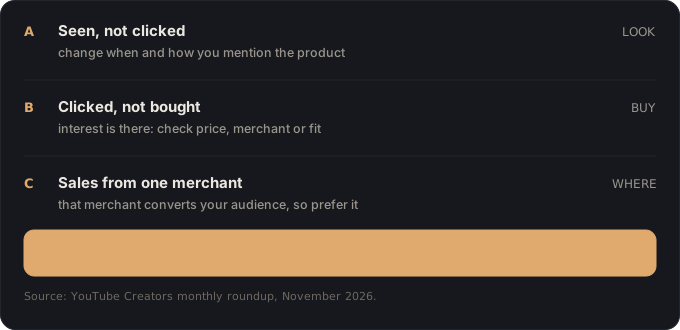
Do this: open Studio → Earn → Shopping. For each product you tagged this month, write down two things: did people look (impressions and tag clicks), and did they buy (sales and revenue). Then sort each product into one of three groups: seen but not clicked, clicked but not bought, or bought. Note which merchants your sales came from.
You end up with: a short list of products to stop tagging, products whose mention to change, and the merchants that convert your audience.
Why: before this update, a product with no revenue could mean nobody cared or that everybody cared and the price was wrong. Those need opposite fixes, and now you can tell them apart. The figure above lists what each pattern points to. For the wider picture of how affiliate income fits into a channel, see our YouTube revenue model breakdown.
Tomás: his tyre pressure gauge got lots of tag clicks and almost no sales: interest was there. The same gauge was cheaper from another merchant, which already drove most of his sales, so he switches the tag. A saddle bag got impressions and no clicks; he only mentions it in passing, so he drops it.
6. One keyframe move per Short, and one heart prompt per stream (10 minutes)
Do this: in YouTube Create, add at most one keyframe animation per Short, on the thing you want the viewer to notice: a slow push in on a number, a label that slides in next to a product. Use an easing curve so it starts and stops softly. On vertical live streams, invite hearts once, at a moment that earns it (“double-tap if you’ve bonked too”), rather than asking every few minutes.
You end up with: Shorts with one deliberate bit of movement instead of constant motion, and live streams where the first heart from each new viewer adds a like.
Why: movement draws the eye, which is why one move works and ten moves are noise. Our lesson on visual variety without noise covers how much is enough. On live, a viewer’s first heart becomes a like automatically, so one natural invitation is enough to collect it.
Tomás: in the tyre Short, the text “60 psi → 45 psi” scales up from 80% to 100% over a second with a cubic ease while Lena says the number. During his next post-race live, he asks once, when he describes the last climb.
Where Vanpelt Studio fits (if you want help)
Everything above works with YouTube Studio, YouTube Create and a notebook. If you’d like help with the slow parts, the Vanpelt Studio desktop app covers a couple of them:
- Moves 1 and 2: its short finder reads your transcripts and suggests standalone moments with a reason for each, and marks where each one should start. It suggests; it does not cut. You still make the Short in YouTube Studio or your editor.
- Before you record: list what each episode needs to cover, then check the recording against that list before you clip or publish, so the strongest clip isn’t the one you forgot to get.
It runs on your Mac, your footage stays on your machine, and it doesn’t connect to your YouTube account.
If it went wrong, it’s one of these
When the clipping tool doesn’t behave
- “I don’t see Clips and Shorts in the left menu.” The tool is in YouTube Studio on desktop, not in the Studio mobile app. Open the video from Content → Videos on a computer.
- “I don’t get AI suggestions or an outline.” Those are limited to the countries and languages listed above. Highlighting the transcript works without them, and is often better anyway (move 1).
- “The Short crops out the person talking.” The automatic crop is a narrow slice of a wide frame. Pick segments where one speaker holds the shot, or film each person on their own camera (move 3).
- “My Short doesn’t show the full episode as a related video.” The link is only added to public Shorts that are not Made for Kids. Check the visibility and audience settings (move 4).
When the other features don’t add up
- “My Shopping revenue is zero but tag clicks look healthy.” That is the split doing its job: people are interested and something stops them buying. Look at price, merchant or whether the product fits the viewer (move 5).
- “I can’t find keyframes, or YouTube Create at all.” The app is available in 21 countries and needs an Android phone with 4 GB of RAM or an iPhone XR or newer on iOS 17. Update the app if you already have it.
- “Nobody sends hearts on my live stream.” Hearts are for vertical live streams watched in the Shorts feed on mobile. Viewers watching on desktop or in a horizontal stream won’t see the option.
The whole recipe on one line
Pick moments that stand alone → start on the claim → check the crop → publish public so the episode link appears → read Shopping as interest versus sales → one keyframe move per Short, one heart prompt per stream. The tool now does the export and the reframing; choosing the moment is still the part that makes the Short.
Sources
- YouTube Creators, monthly creator roundup video, November 2026: the four announcements covered here.
- YouTube Help, Create clips and Shorts from your videos: steps, the countries and languages for AI suggestions, captions and the related video link.
- YouTube Help, Get started with YouTube Create: the 21 countries and device requirements.
- For how YouTube treats Shorts made from existing videos, see our explainer on the October 2026 Shorts originality update.